A clean file is the fastest way to get a correct quote and a correct panel. Most delays in custom aluminum work start with the drawing, not with the machine.
This guide covers what a DXF file should contain, what to check before you send it, and what to include in the message. It is general practice. Your supplier’s own requirements may differ, so ask for them.
Why the DXF file matters
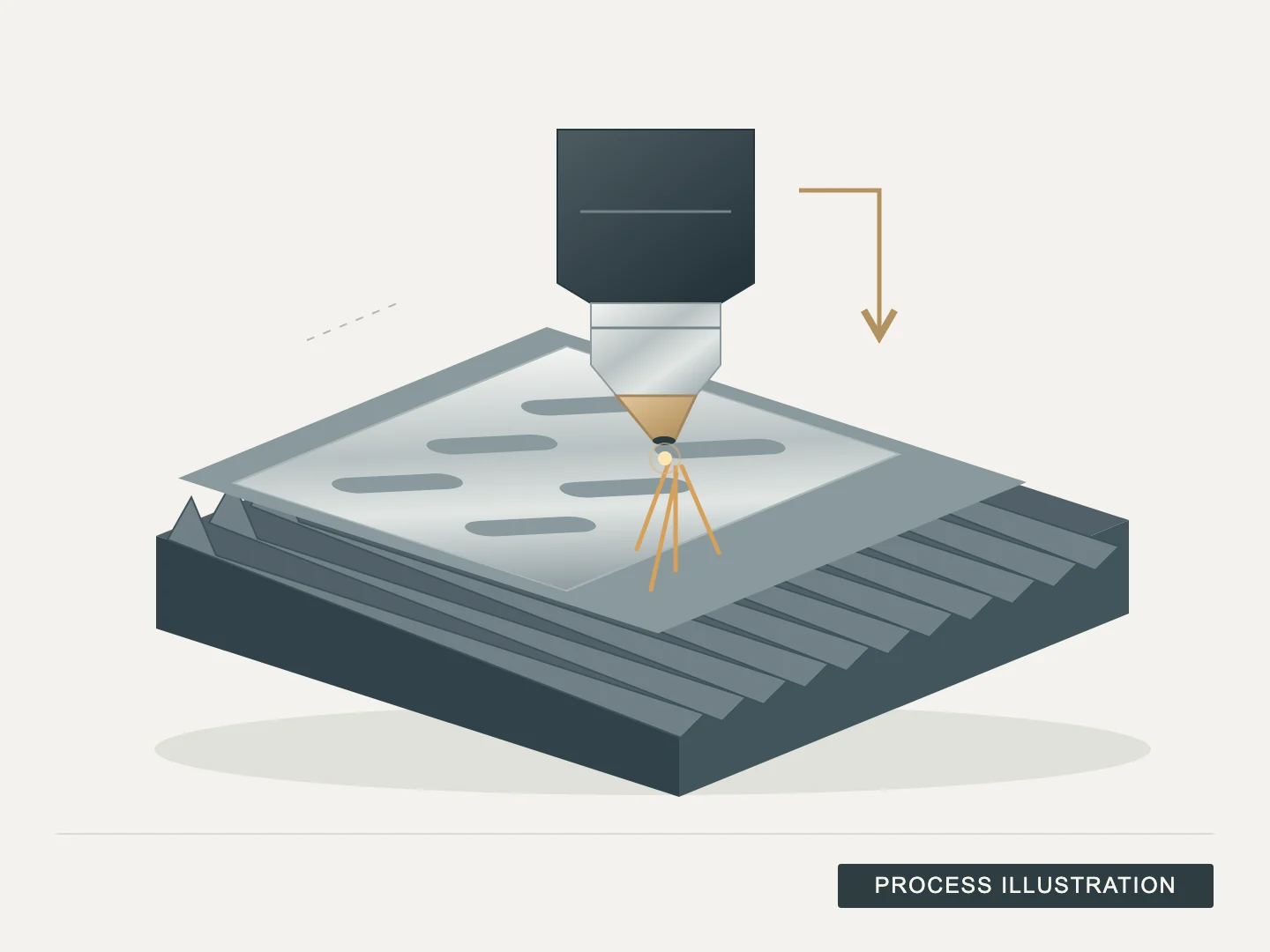
A DXF file stores lines, arcs and curves as exact geometry. A laser follows those lines as the cut path. If the geometry is wrong, the cut is wrong.
A picture of a pattern is not the same thing. A photo, a screenshot or a PNG has pixels, not paths. It must be traced or redrawn, and tracing often rounds corners and shifts dimensions.
Use vector geometry at real size
Draw the panel at 1:1 scale. One unit in the drawing should equal one real unit on the panel.
State the unit in your message: millimetres or inches. Many files carry no unit information, and a file drawn in inches can open as millimetres. The panel then arrives 25 times too small, or the quote is based on the wrong size.
A simple check helps. Measure the outer edge in your software and compare it with the size you ordered. If they match, the scale is right.
Close every shape
A laser cuts a path. If a shape is not closed, the cut has no clear inside and outside. The software cannot tell which part is the hole and which part is the panel.
Check these points before export:
- Every hole and slot is a closed shape.
- The outer edge is one closed shape.
- No gaps exist where two lines should meet.
- Lines do not overshoot past the point where they join.
Many design programs can join open lines into a closed path. Run that tool and then look at the result, because a join can fail on small gaps.
Remove duplicate and overlapping lines
Two lines drawn on top of each other look like one line on screen. The machine may cut the same path twice. That can burn the edge and cause slower cutting.
Look for these common causes:
- Copied shapes pasted on top of the original.
- Panel borders drawn once for the outline and again for the frame.
- Pattern tiles that share an edge, so the shared edge appears twice.
Most drawing tools have a command to delete duplicates or overlapping lines. Use it, then check the file again.
Convert text and splines
Text is a special case. If a font is missing on the cutting computer, the letters can change or disappear. Convert all text that should be cut into outlines or curves before export.
Complex curves can also cause problems. Very high point counts make the file heavy and the cut slow. Very low point counts make a smooth curve look faceted. If you are unsure, send the original file as well as the DXF so an engineer can check it.
Organise layers
Put different kinds of information on different layers, and name each one clearly. For example:
- Cut: everything that must be cut through.
- Fold or bend: lines where the panel is formed, if any.
- Engrave or mark: any surface marking, if the process offers it.
- Notes and dimensions: information for people, not for the machine.
Do not leave notes or dimension lines on the cut layer. A dimension line can end up as a cut line by mistake.
Check feature sizes against thickness
Thin sheet and fine detail do not always work together. A very narrow bridge between two holes can distort with heat or break in handling. A very small hole in thick sheet may not cut cleanly.
As a general rule, the smallest hole and the narrowest bridge should not be much smaller than the sheet thickness. The right limit depends on the machine, the alloy and the pattern, so treat that rule as a starting point only. Ask your supplier for their minimums.
Also think about what happens after cutting. A finish adds a thin layer to the edge. Holes can look slightly smaller after powder coating or other treatments, so tell the supplier if a tight fit matters.
Be careful with floating islands. In a stencil-style pattern, the centre of a letter “O” or “A” is not attached to anything. It will fall out. Add small bridges, often called stencil bridges, to hold such parts in place.
Plan for the whole panel, not only the pattern
A pattern drawn in a design program is not yet a panel. Before you send the file, confirm these points:
- Overall panel size and tolerance you need.
- Material and thickness. Aluminum alloy 5052 is one alloy commonly used for sheet work, but confirm what suits your use.
- Where fixing holes go and how the panel is mounted.
- Whether the pattern has a direction, such as a woodgrain or a one-way motif.
- Margin around the pattern, so the edge is strong enough.
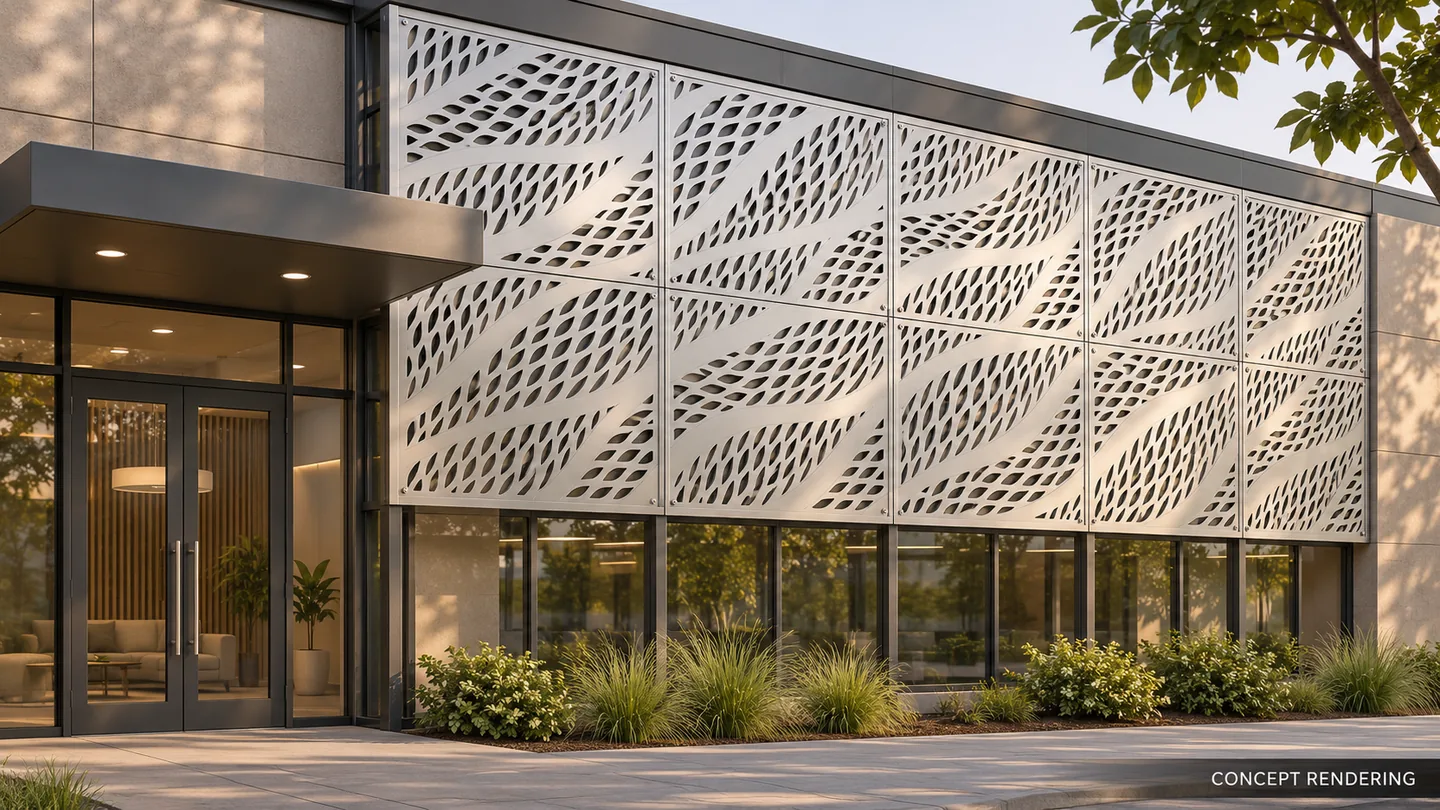
If panels sit next to each other, check the pattern at the joins. A pattern that looks good on one panel can break at the seam if the edges do not line up.
Send a proof sheet with the file
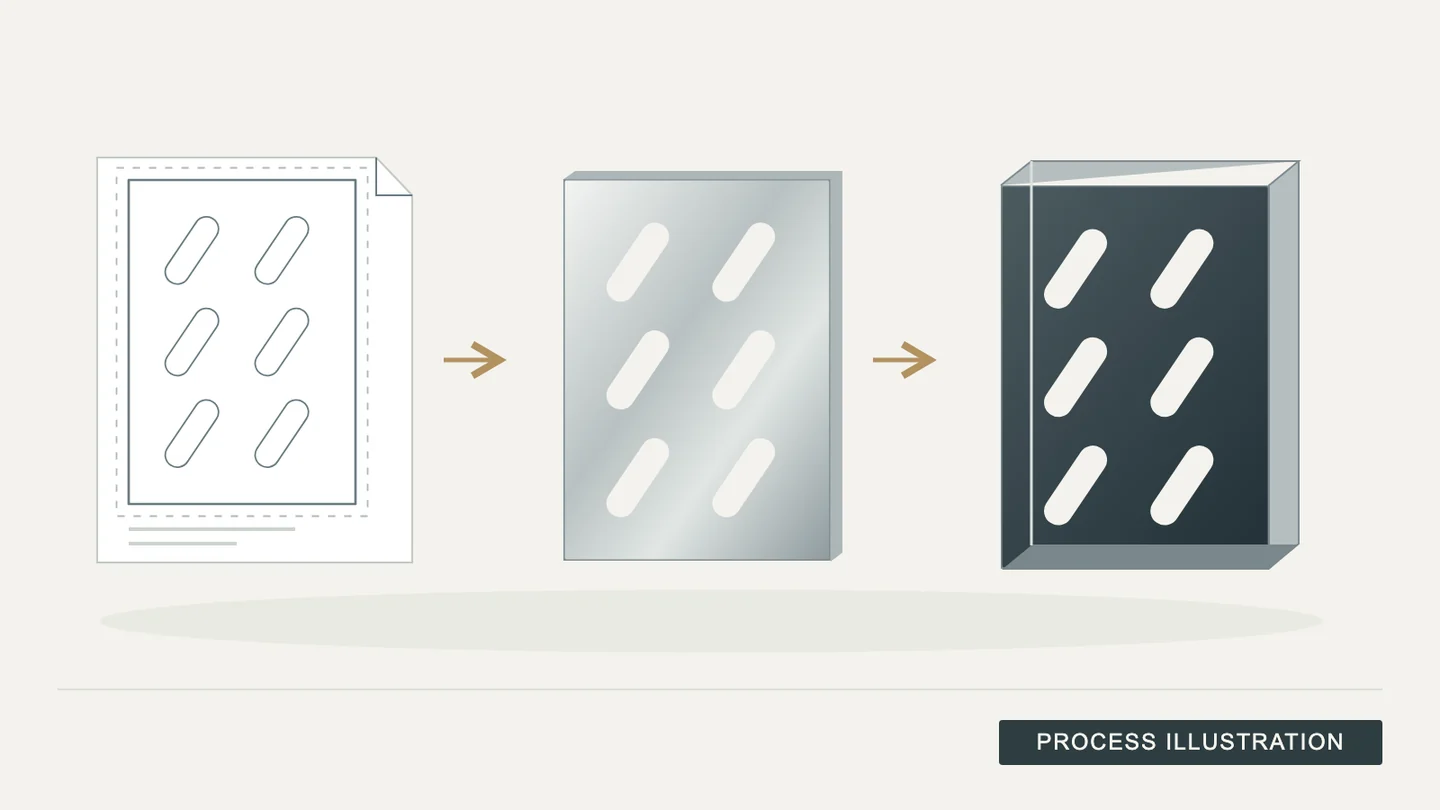
A DXF has no colour and no context. Add a simple PDF or image that shows the panel with its main dimensions and the intended finish. Then the engineer sees what you see.
This also protects you. If the file and the proof disagree, the team can ask before cutting, not after.
What to send in your quote request
Send one message with everything together. It saves several rounds of questions.
- The DXF file at 1:1 scale, and the unit stated in writing.
- A PDF or image proof with the key dimensions.
- Material and thickness, or the use of the panel if you want advice.
- Quantity for the first order and expected repeat quantity.
- Finish and colour, with a colour reference if you have one.
- How the panel will be fixed, and any bending or forming needed.
- Destination country, for packing and shipping advice.
Your supplier will review the drawing and tell you what must change before production.